Though AI can be used generate entirely new images, I was curious to try editing an existing image. I started with this image of colorful houses:
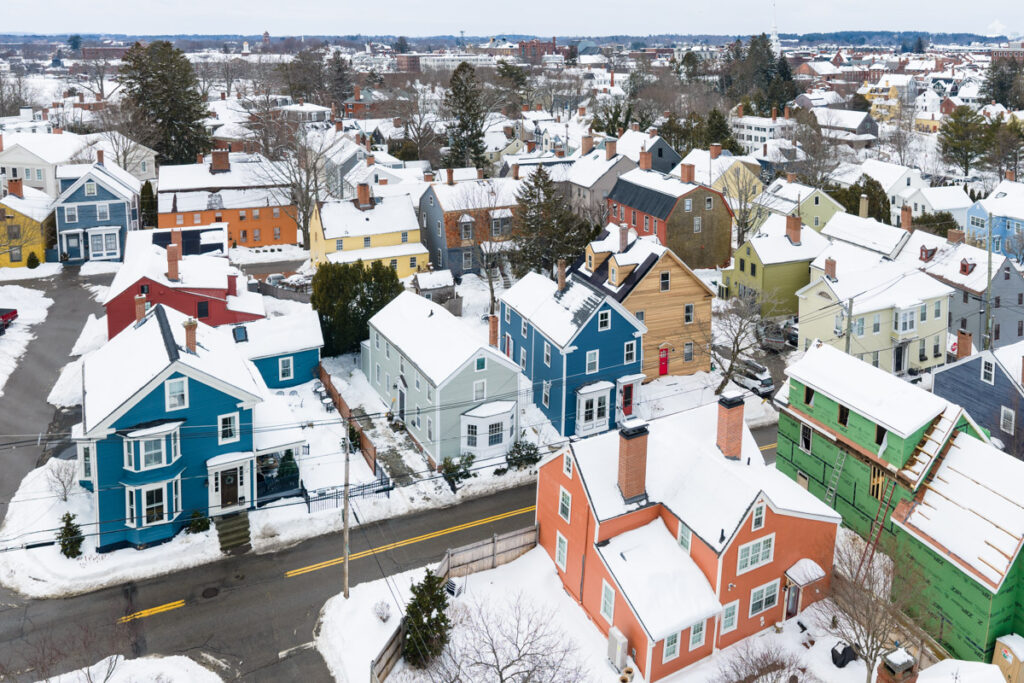
Aiming to reduce the color palette, I asked Firefly to change the colors to only use a list of nine specific colors. I expected most of the colors to change but it only changed the green house at the bottom right. That certainly has real-world application because the green is a temporary construction color, the underlayment for new siding. But I was expecting most of the houses to change color.
I then changed the prompt but the result was the same as before.
Then I asked: make this image look like a coloring book.
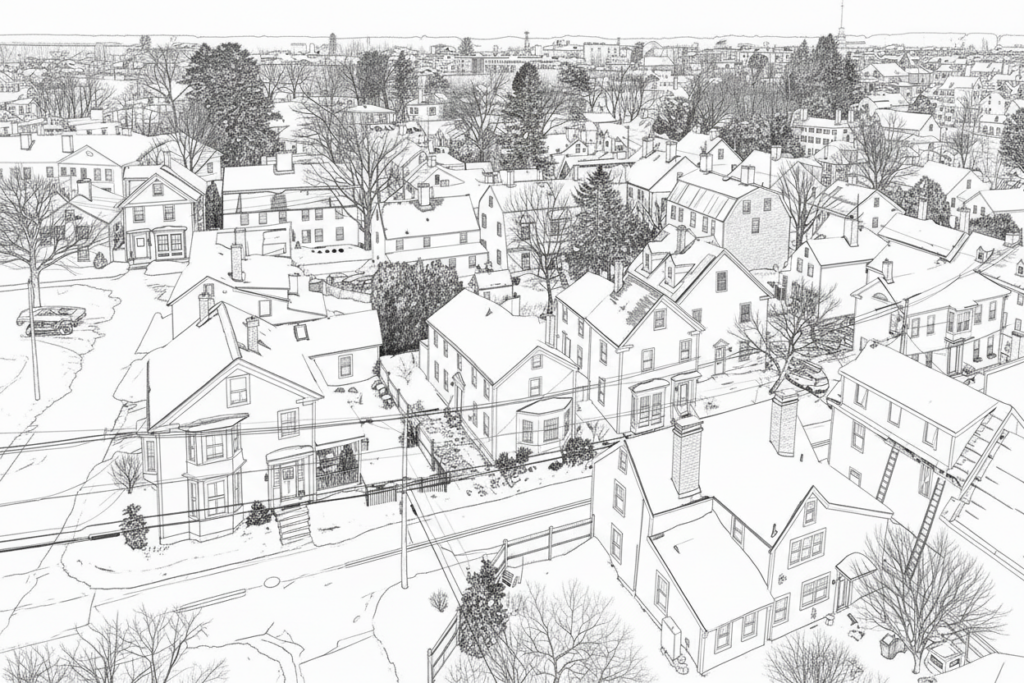
Then I asked: make this image look like a coloring book using only eight colors. It made every house the same exact color.
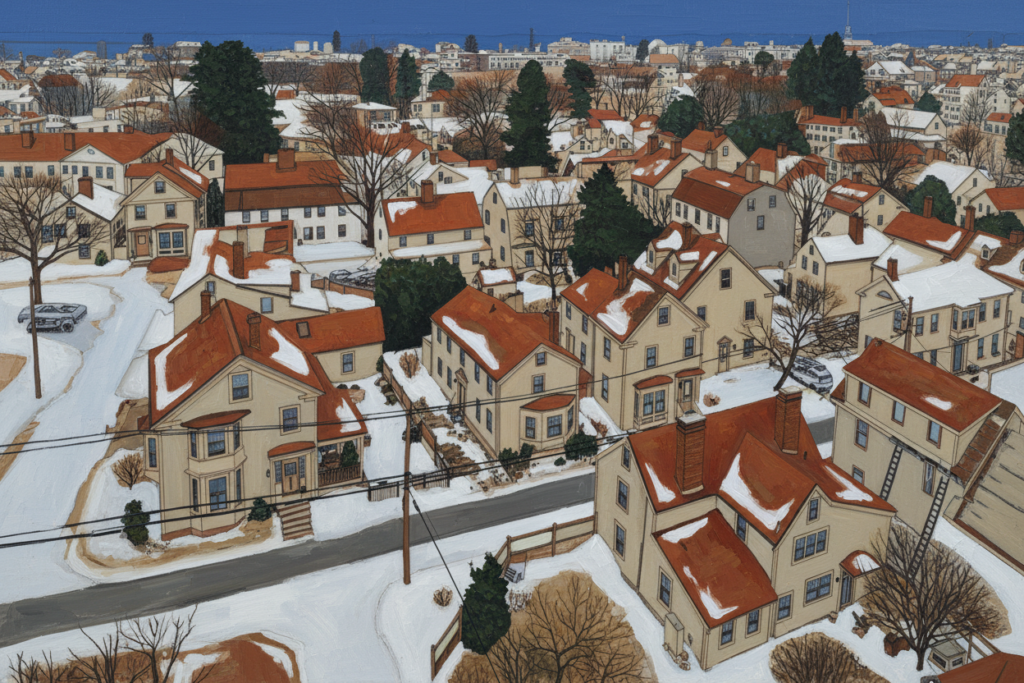
Although I was going to make another attempt at refining my AI prompt, my free AI credits were exhausted after five or six attempts. Continuing would require paying a monthly fee. The cheapest plan was $9.99 per month and the unlimited plan was $199.99 per month.
It is clear to me that a text prompt is likely to not get the desired results and multiple attempts are commonly required … which could use up credits very quickly.
You can first give the sketch to AI to get a color – matching scheme from it, and then edit the existing pictures. Maybe you’ll get better results. In addition, this editor provides free credits every day to help you generate content. https://aiphotoeditor.io/